How to Download OnlyFans Purchases
OFDownloader can download OnlyFans purchases that your signed-in account can already open and play. The path is simple: open Home, select Purchased, find the video, and click Download.
Can you download OnlyFans purchases?
Yes, if the purchase is still accessible to your account. OFDownloader adds a Download button to purchased media that OnlyFans can already play for you.
It does not unlock unpaid media, recover deleted content, or make inaccessible media available.
Install OFDownloader
Choose your platform below. Each option opens the appropriate installation guide.


Sign in through the normal OnlyFans website. Do not enter your OnlyFans password into the extension. If a license prompt appears, you can close it and try the supported download flow first.
How to download OnlyFans purchases
1. Open Home
Sign in to the OnlyFans account that made the purchase, then select Home from the navigation.
2. Select Purchased
Below the post composer, select Purchased next to All. This opens the media you already paid to unlock.
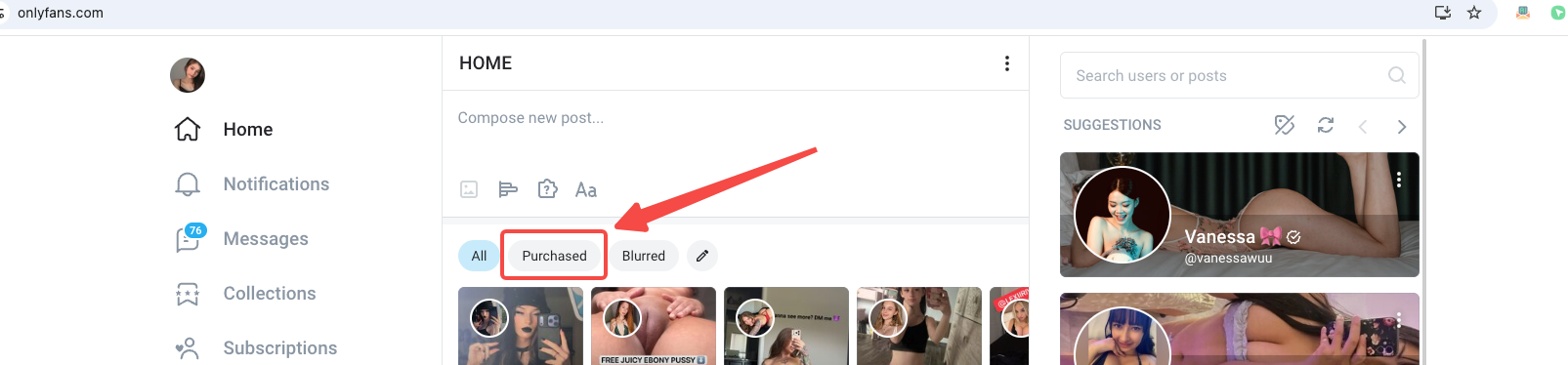
3. Find the video
Browse the purchased thumbnails and find the video you want to save. Open it if needed and confirm that your account can play it.
If you only need help locating the item, use the separate guide to check a video you paid for on OnlyFans.
4. Click Download
Click the blue Download button below the purchased video. The item should be added to OFDownloader immediately.
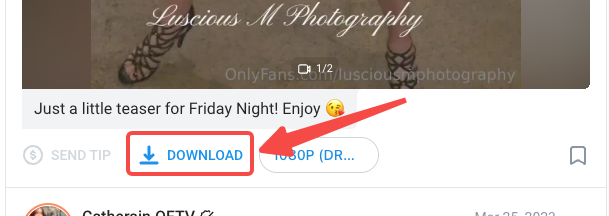
Click Download once. Keep the OnlyFans tab open while OFDownloader processes the item, then confirm that it reaches Completed in the OFDownloader download list.
Can you download all OnlyFans purchases at once?
OFDownloader does not promise one account-wide export containing every historical purchase. Work through the accessible items shown under Purchased and confirm that each video still opens.
For accessible content on one creator's profile, use the bulk download one creator guide. Do not assume a profile batch is identical to your complete Purchased history.
If the Download button is missing
Check these four things before retrying:
- Confirm that the video opens and plays normally from Home → Purchased.
- Reload the OnlyFans tab after installing or updating OFDownloader.
- Confirm that the extension is enabled in the browser you are currently using.
- Temporarily disable another downloader or content blocker that modifies the page.
If the control is still absent, follow the missing Download button guide. If the item enters the list but fails or remains stuck, use the download failed guide.
Use downloaded purchases responsibly
Only download media that you purchased or have permission to save. Keep personal copies private and do not repost, sell, or redistribute a creator's content.