How to Check a Video You Paid for on OnlyFans
To check a video you paid for on OnlyFans, open Home and select Purchased. This is the direct place to browse media you already paid to unlock; you do not need to start by scrolling through Messages.
How to check video you paid for on OnlyFans
1. Open Home
Sign in to the same OnlyFans account that made the purchase, then select Home from the navigation.
On mobile, open the main navigation first if Home is not already visible.
2. Select Purchased
Below the post composer, select the Purchased filter next to All. Do not use the Blurred filter when you are looking for media you already unlocked.
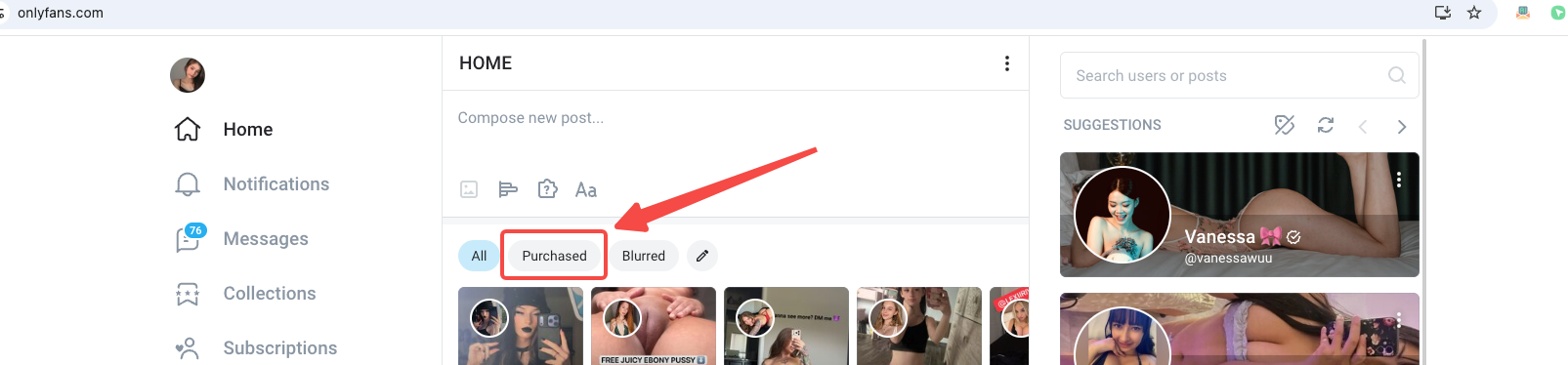
Open Home, then select Purchased in the filter row highlighted above.
3. Find the video
Browse the thumbnails in Purchased and select the video you want to check. Use the creator image and thumbnail to distinguish it from other purchases.
4. Open and play it
Open the purchased video and confirm that it plays. A completed purchase should not ask you to pay for the same item again.
If the item still appears locked, do not purchase it a second time. Check the account and payment details first.
If the paid video is missing from Purchased
Check these possibilities:
- Wrong account: Make sure you signed in with the account that made the payment.
- Wrong filter: Return to Home and confirm that Purchased—not All or Blurred—is selected.
- Temporary loading problem: Reload Home and open Purchased again.
- Payment not completed: Check whether the charge completed instead of remaining pending or failing.
- Removed media or account: The creator or platform may have removed the content.
If the charge appears in payment history but the purchased video cannot be opened, contact OnlyFans support with the transaction date and amount. Do not send your password or payment-card number.
Purchased videos and subscription posts are different
A Purchased item is media you paid to unlock separately. A regular post included with a subscription is not necessarily a separate purchase, so do not expect every subscription video to appear under Purchased.
Save an accessible purchased video
Once you have found a purchased video that your account can play, follow the separate guide to download OnlyFans purchases.
Before buying another multi-video offer, you can also reveal the total duration of an OnlyFans bundle.